
5. Avatar menu
You use your avatar's Expressions menu from VRChat just as it is. Outfit and hair toggles, expression buttons, Radials and Puppets all work exactly as they do in VRChat.
Expressions menu
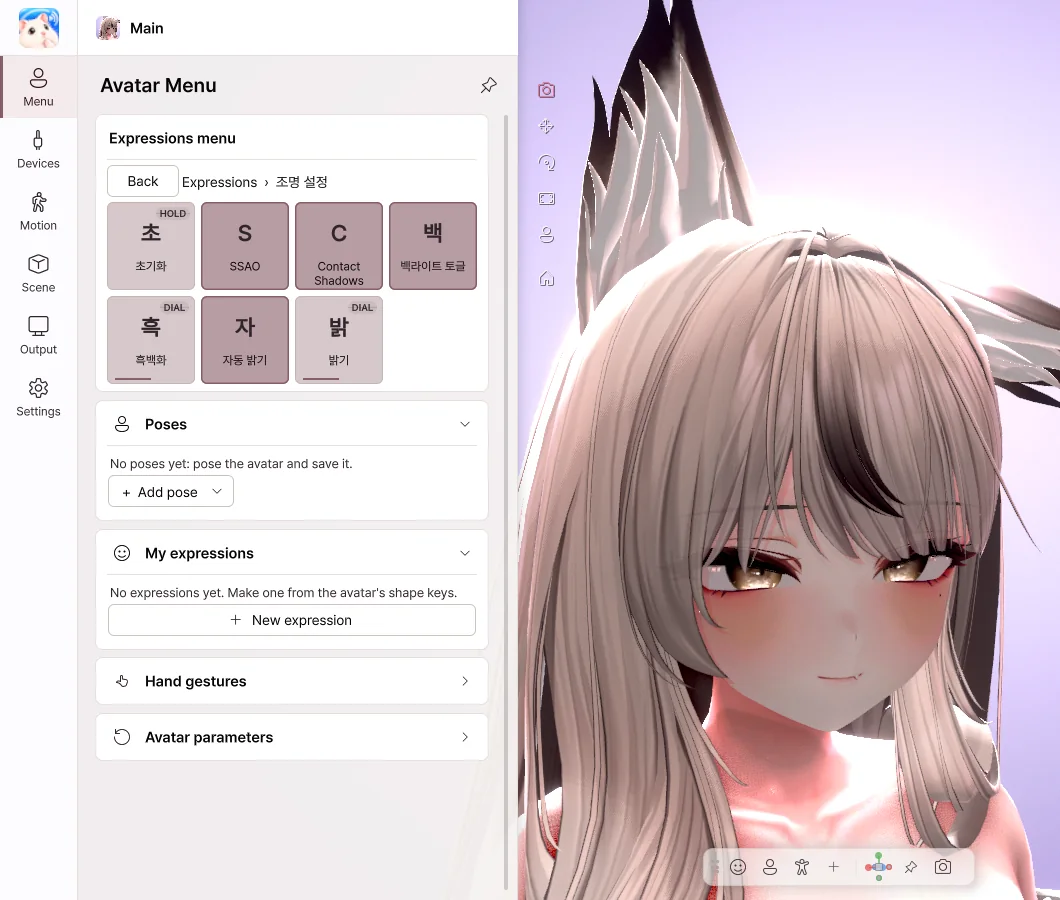
- Toggle — Switches on and off each time you press it.
- Button — Stays on while you hold it.
- Sub Menu — Opens a submenu. Use Back to return.
- Radial · Puppet — Set a value with a slider or a pad.
Right-clicking an item
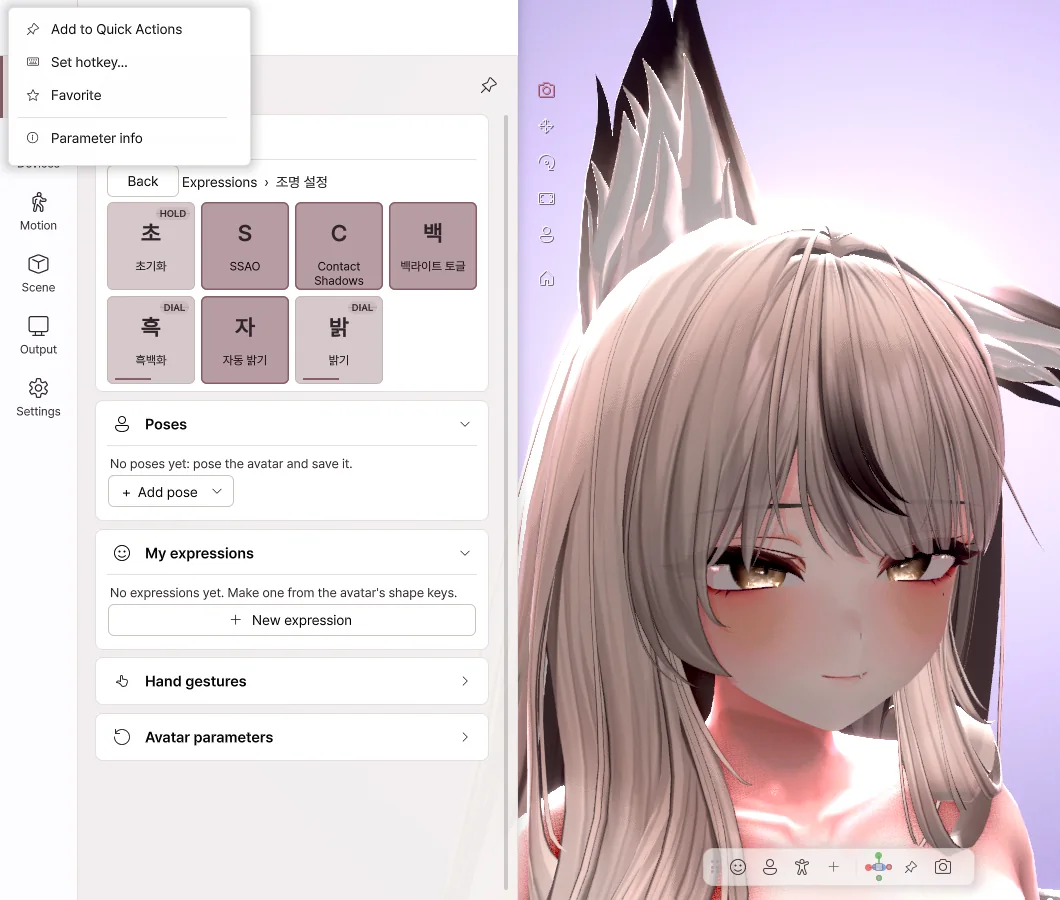
- Add to Quick Actions — Places it as a button on the bottom toolbar.
- Set hotkey… — Lets you turn it on with a single key, even while you're in a game.
- Favorite — Use it right away from the top of the menu.
Hand gestures
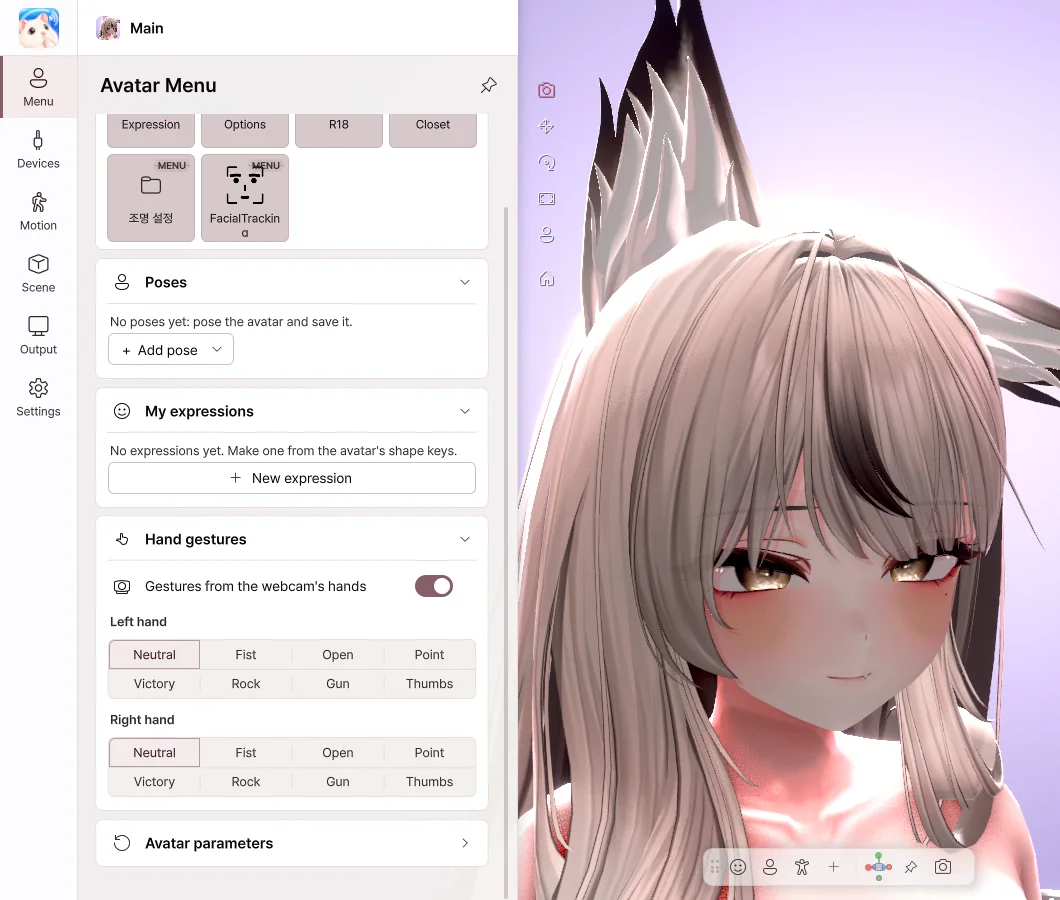
- Choose left-hand and right-hand gestures to show the avatar's gesture expressions.
- Turn on Gestures from the webcam's hands, and your own hand shapes become the gestures.
Reset to defaults
Click Avatar parameters › Reset to defaults to return the menu values to the avatar's defaults. Values that are saved, such as outfit state, carry over to the next launch.
Quick Actions
Turn actions you use often into buttons or keys. You can add menu items, gestures, camera views, lighting presets and more, and right-click a button to change its name and position.
Reset
| Reset | Reset everything | |
|---|---|---|
| What it does | Returns tracking, hand poses and PhysBones to their initial state | All of that, plus outfits · position · camera, back to their initial state |
| How | ⟲ at the top | Right-click ⟲, or Settings › General |