
9. Output
Send the avatar image to your streaming software or call apps.
| Destination | Method |
|---|---|
| OBS (transparent background) | Spout2 |
| Camera in Discord · Zoom · Teams | Virtual camera |
| Streaming a game on Discord | Screen share |
| Photos | Save PNG |
Stream
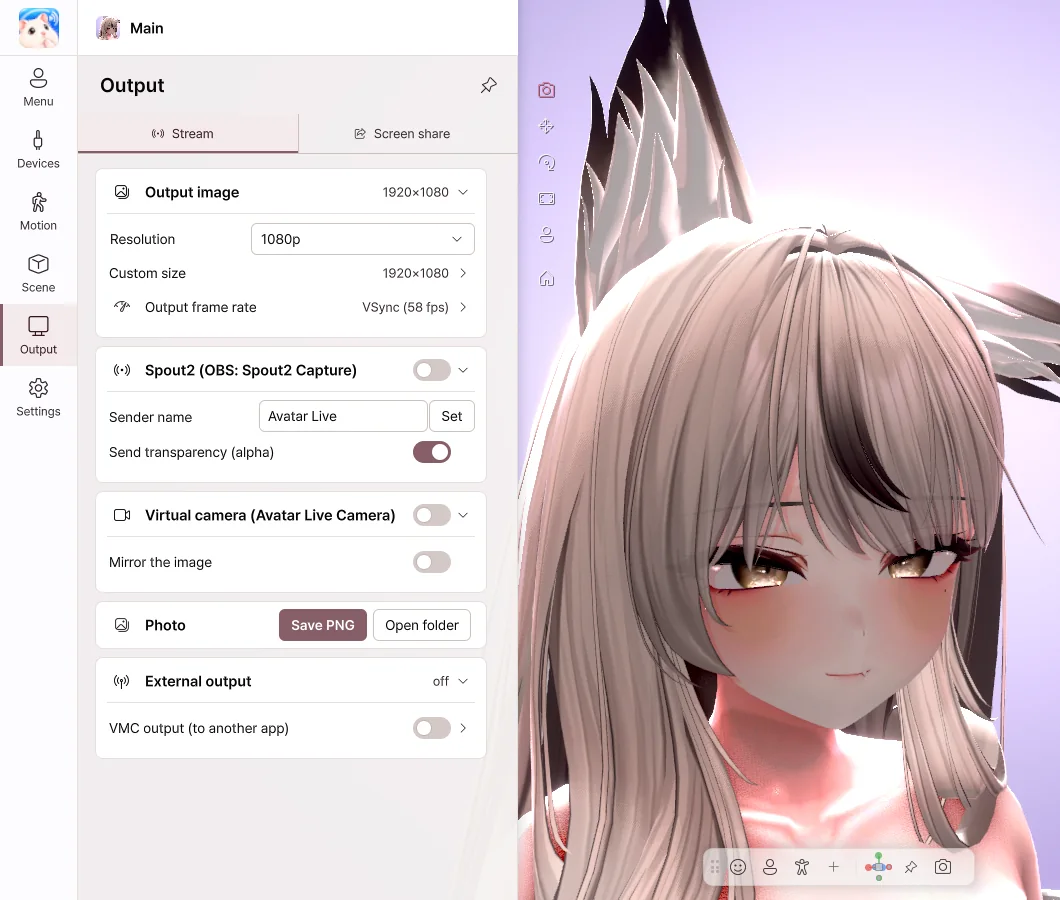
- Output image — Choose the size of the image you send.
- Spout2 — Turn it on and add a Spout2 Capture source in OBS, and the avatar appears. Set the background to Transparent to send it without a background.
- Virtual camera — The first time only, click Install the virtual camera…, then choose Avatar Live Camera as the camera in the other app.
- Photo — Save PNG saves the view without the menus.
Discord looks for cameras only when it starts. If the camera isn't in the list, please quit Discord completely and open it again.
Discord screen share
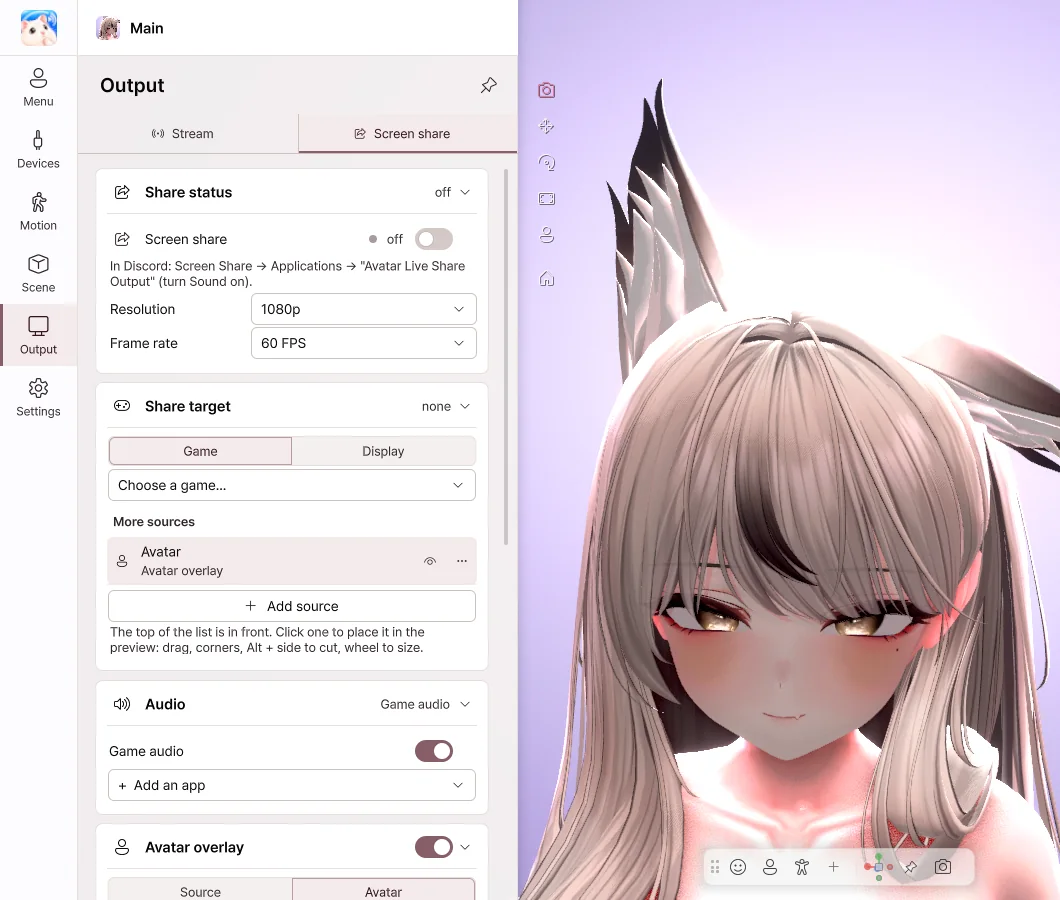
- Under Share target, choose a game or a display.
- Turn on Screen share.
- In Discord, choose Screen Share → Applications → Avatar Live Share Output and turn on sound.
- Your friends see the game and the avatar together, while you see only the game.
- Drag the avatar in the preview to set its position and size.
- Turn on Game audio to send only the game's sound to your friends.
If the game shows up black, try switching the game to borderless window or windowed mode. We recommend running Avatar Live without administrator rights.
💡 Screen sharing may not work with games that run only in exclusive full screen. In that case, please stream through OBS.
External output (VMC)
Turn on VMC output to send the avatar's movement to another app. This is an experimental feature.