
6. Devices
Webcam and microphone
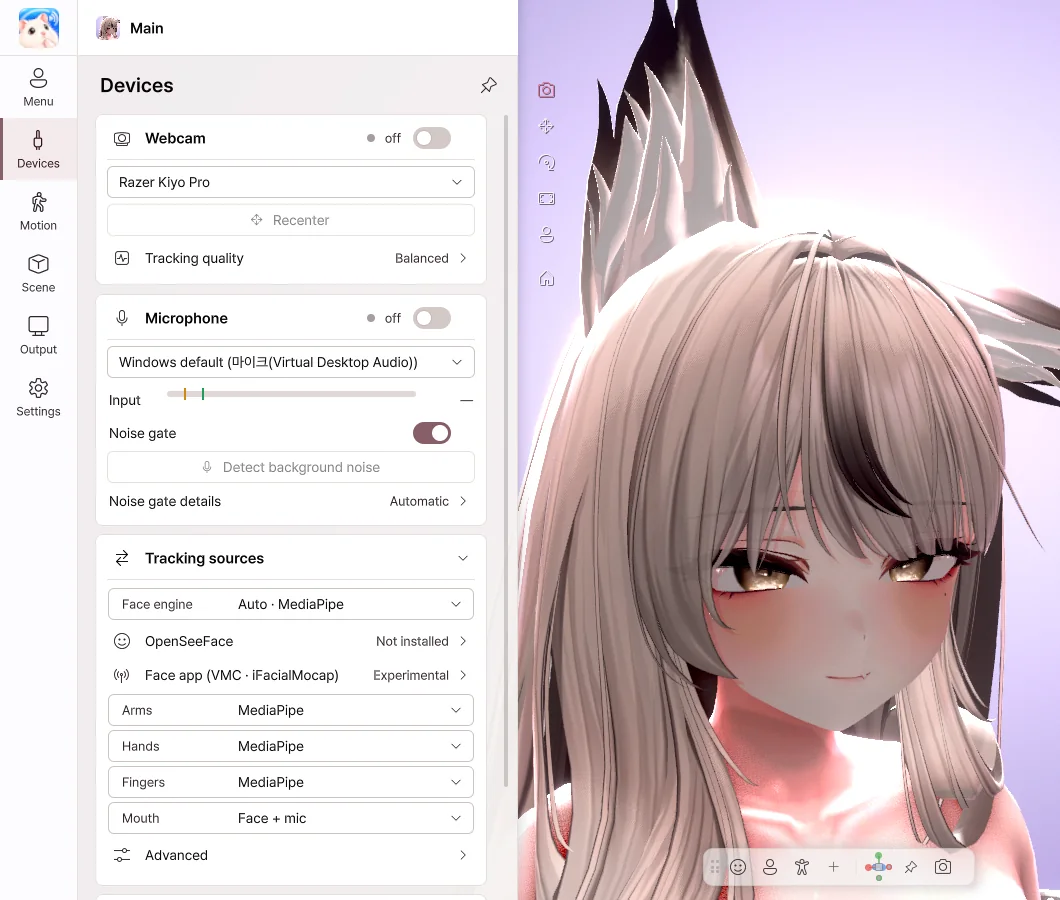
- Turn on the Webcam switch to start face and hand tracking.
- Choose the webcam to use from the camera list.
- Recenter — Takes the direction your face is pointing now as straight ahead.
- Tracking quality — When you use it alongside a game, we recommend Balanced or Eco.
- Turn on the Microphone switch, and the mouth moves when you speak.
- Noise gate — Keeps the mouth still for noise such as keyboard sounds.
- Detect background noise — Click the button while you stay quiet, and the noise level is set automatically.
Tracking sources
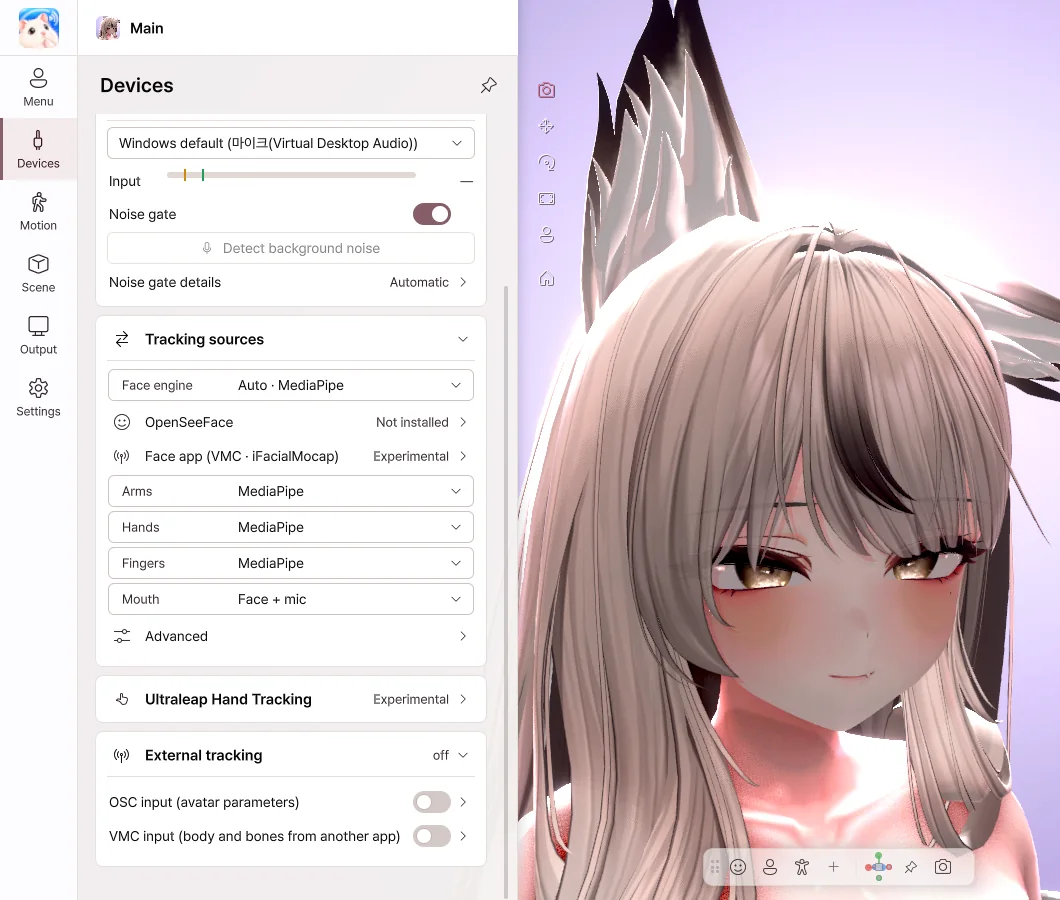
- For each part (face, arms, hands, fingers, mouth), choose what moves it.
- With Mouth set to Face + mic, the mouth follows your voice while you speak and your mouth shape the rest of the time.
- Face app — Receives your face from an app such as iFacialMocap on iPhone instead of the webcam.
- Ultraleap Hand Tracking — Tracks your hands with a Leap Motion device.
- External tracking — Connects with other apps over OSC · VMC.
Ultraleap and OSC · VMC are experimental features. We expect them to work properly, but we haven't yet been able to test them with every device and app in the developer's environment.
Face tracking with an iPhone (iFacialMocap)
- Connect your iPhone and PC to the same Wi-Fi.
- In Face app, set the source to iFacialMocap, then Copy the address under This PC's addresses.
- In the iFacialMocap app on your iPhone, go to the gear › Destination IP address and enter that address.
- Turn on the switch, and the expressions from your iPhone appear on the avatar.
You can leave the iPhone address (optional) field empty. Fill it in only if you don't use Destination IP address in the iFacialMocap app.