
3. Start screen and avatar library
Start screen
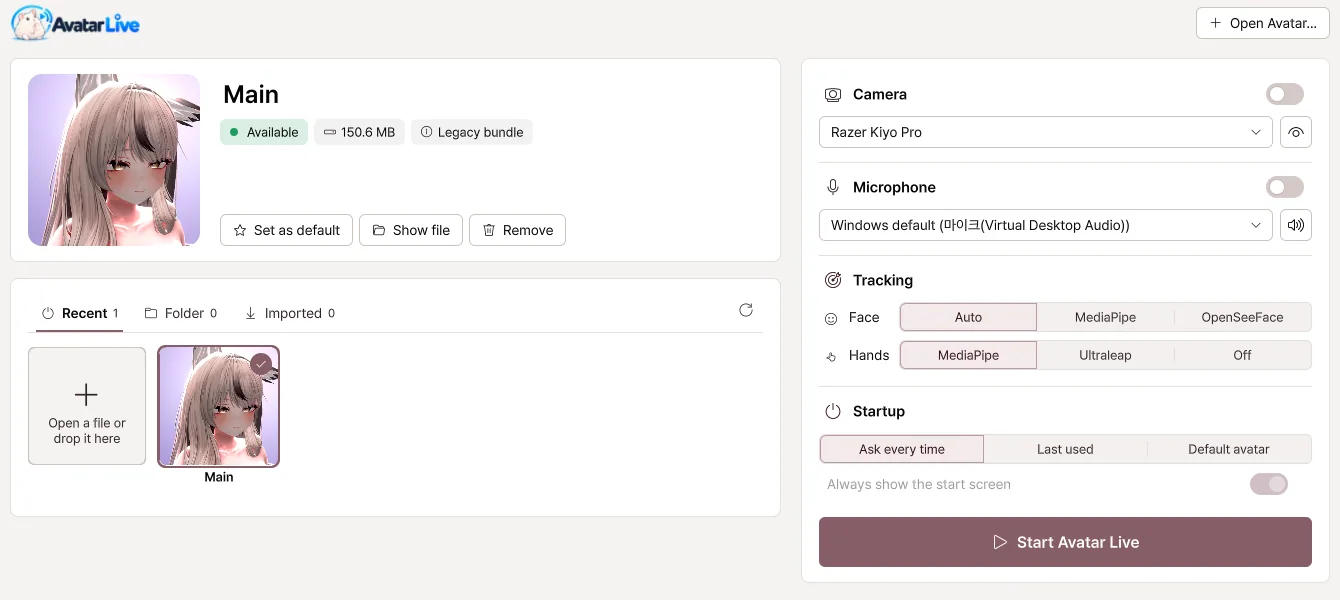
| Item | What it does |
|---|---|
| Open Avatar… | Opens a .vavatar file. You can also drag and drop it onto the window. |
| Recent · Folder · Imported | Shows avatars you opened recently, avatars in your avatar folder, and avatars you've imported. |
| Set as default | Makes Avatar Live start right away with this avatar. |
| Camera · Microphone | Choose the devices to turn on at start. |
| Face · Hands | Choose how tracking works. |
| Startup | Choose from Ask every time · Last used · Default avatar. |
| ▶ Start Avatar Live | Starts with the avatar you chose. |
Hold Shift while launching to start safely without the webcam and microphone. Try this when a device problem keeps Avatar Live from starting smoothly.
Switching avatars while running
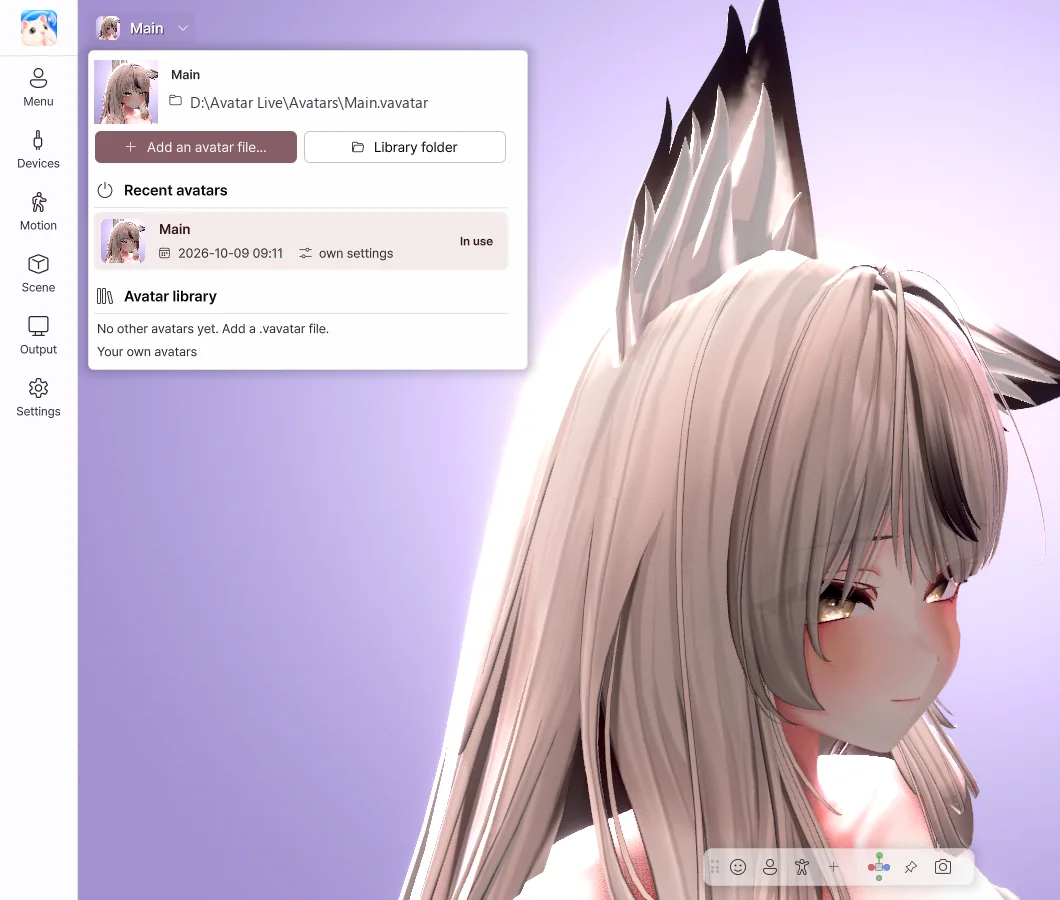
- Click the avatar name at the top left to open the library.
- Click an avatar in the list to switch to it.
- Use Add an avatar file… to bring in a new avatar.
- A webcam and microphone you had turned on stay on after you switch.
Returning to the start screen
Click the logo at the top left and choose Restart.